Face Composer & The Face — User Manual
Build a Garmin watch face on the web and wear it within 5 minutes. Every screen, part and setting.
1. Getting Started
Face Composer is a web page where you build your Garmin watch face. The Face is the watch face that shows it on your wrist. There is no account and no password: your watch's Device ID is the only thing that connects the two.
- Install The Face from the Connect IQ Store and choose it as your watch face.
- Find your Device ID on the watch: in the watch's settings open Watch Face → Customize, and Device ID is the first line. It is four characters, a dash and four more, like a1b2-3456.
- On a computer, open easymoat.com/watchface/ and type the ID into 5 Setup → Device ID. It is kept in that browser, so you type it once. If Face Composer then asks for a Web code, read the 6 digits from the same Customize menu and sign in (chapter 9).
- Build your dial: place parts, pick a photo, choose colors and sizes (chapters 4 to 7).
- In 4 Collection, press Save to collection, then press To watch on the saved item. The watch shows it within 5 minutes.
2. The Face on Your Watch
Right after you install it, The Face shows the Lobby dial: classic hands, the date, battery, body data, weather, two stocks and two games. It is a sample to start from, laid out on a Forerunner 965. On other watches some text may overlap or run off the edge; open it in Face Composer (Start from Lobby), adjust it for your watch and send it back. The first dial you send replaces the sample.
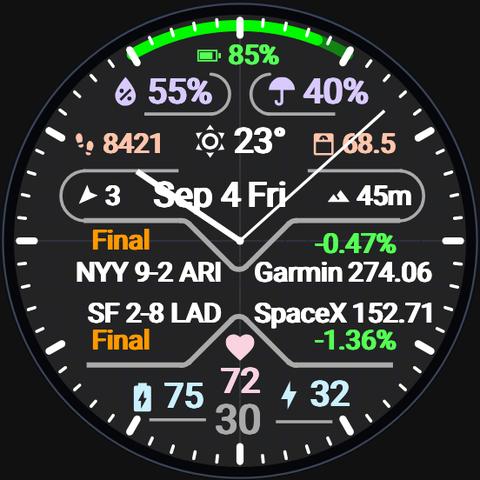
How the watch gets your dial
- Every 5 minutes: The Face checks for a new dial in the background. There is no cable and nothing to press on the watch.
- One dial at a time: Sending another dial replaces the one on the watch.
- Through your phone: The watch reaches the internet through Garmin Connect on your phone. Without it, The Face keeps showing the last dial it received.
- Live data: Forecasts, stock prices and scores refresh with each check. A forecast older than 3 hours is dropped and the watch's own Garmin weather is used instead.
The Face menu on the watch
In the watch's settings, open Watch Face → Customize. The Face menu lists Device ID, Web code (a 6-digit code for signing in to Face Composer; it changes every minute, and selecting Web code again shows a fresh one), Sign out web (ends every Face Composer sign-in for this watch at the next sync, within about 5 minutes), the Hold for details switch, and Build (quote it if you contact us). Right after installing, Web code reads Not ready yet until the first sync.
Hold for details
With the Hold for details setting on (the default), touching and holding a part opens a detail screen.
| Hold | Opens |
|---|---|
| Weather parts | The weather detail screens below. With Weather detail set to Garmin, the watch's own weather screen instead. |
| Battery, heart rate, steps, floors, calories, Body Battery, stress, respiration, altitude, notifications, and the graphs | The watch's own detail screen for that metric. |
| Stock 1 / Stock 2 | MarketWatch, if it is installed. |
| Game 1 / Game 2 when set to MLB | BaseballWatch, if it is installed. Games 3 and 4 and the other leagues open nothing. |
Hold for details needs a watch that supports complications. On other watches, holding does nothing.
Weather detail screens
- Hourly: the next 5 hours: time, weather, temperature, wind and chance of rain.
- Daily: 5 days: weather, high, low and chance of rain.
- Now: a large icon and temperature, today's high and low, humidity, wind, chance of rain and pressure.
Hold again to go to the next page. After the last page you are back on the dial.
Settings in the Connect IQ app
Open the Connect IQ app on your phone, choose The Face, then Settings. The same Hold for details switch is also in The Face menu on the watch.
- Hold for details: hold a part to open its detail screen. On by default.
- Credits: the icon license (read only).
On AMOLED watches in low-power mode, the Seconds part is not drawn and Time + sec shows only the time. Everything comes back when you raise your wrist.
3. The Face Composer Screen
Face Composer is made for a computer screen. On a phone it opens a smaller screen for switching dials (chapter 10).
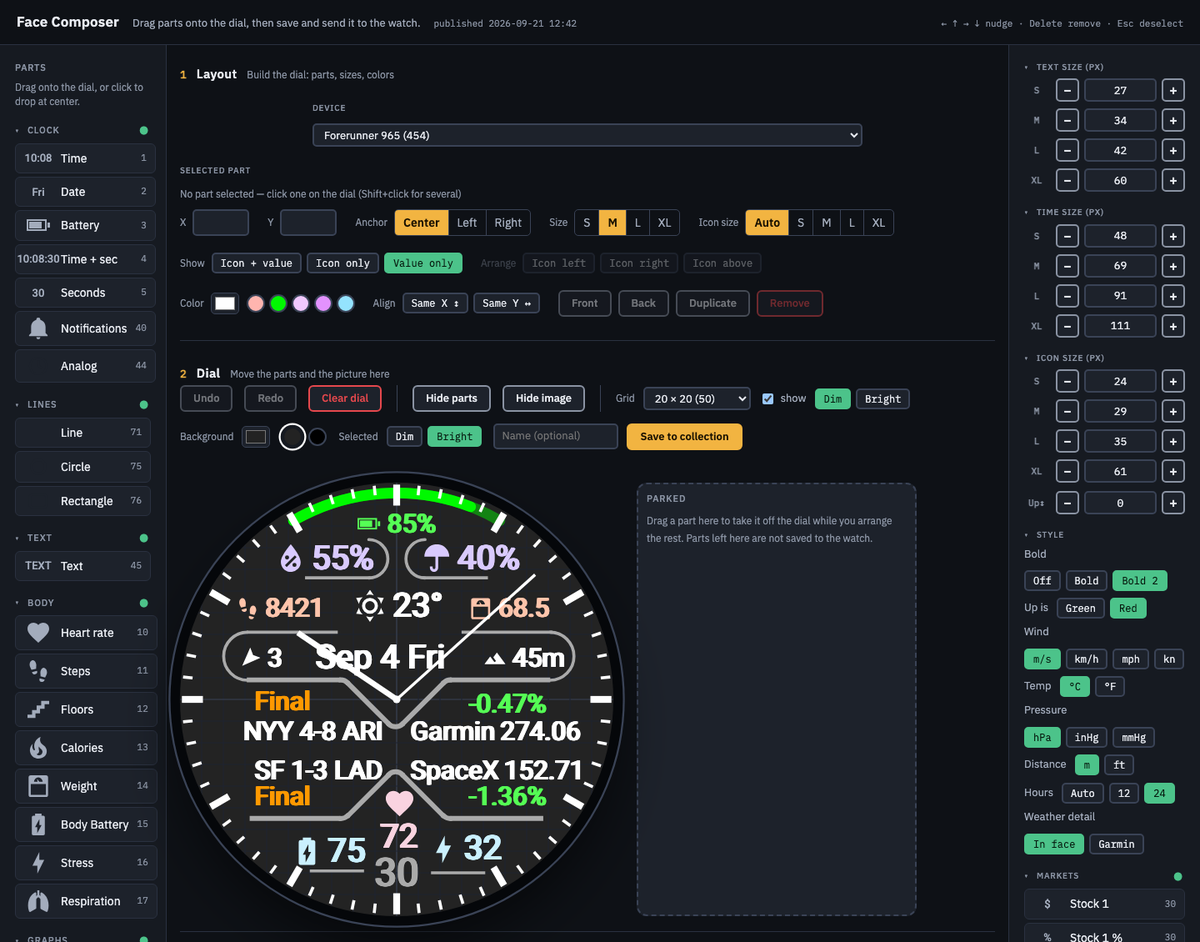
- Parts (left): every part you can place, in groups: Clock, Lines, Text, Body, Graphs, Weather, Hands and Rim. Click a group heading to fold it.
- 1 Layout: the device you are designing for, and the settings of the part you selected.
- 2 Dial: the dial itself, where you move parts and the picture, with undo, grid, background color and the Save to collection button above it.
- 3 Image: the photo and the shape it is cut to.
- 4 Collection: your saved dials and their To watch buttons.
- 5 Setup: your Device ID, where the weather comes from, and your Pass.
- Right panel: text and icon sizes, style, stocks, games and the list of parts on the dial.
Choose your watch in 1 Layout → Device first, so the dial has the right size and fonts. Your work is kept in this browser as you go, and comes back when you reopen the page.
4. Placing and Editing Parts
Adding parts
- Drag: a part from the palette onto the dial. It snaps to the grid. Let go outside the dial to cancel.
- Click: a part in the palette. It lands near the center, in a free space.
- Hands and rims: click to put on, click again to take off. One set of hands at a time; rims can be stacked two deep. They cover the whole dial, so they cannot be dragged; the hands' center can be moved with the X and Y fields or the arrow keys.
Selecting and moving
- Click: a part on the dial, or its row in the Elements list on the right.
- Shift / ⌘ / Ctrl + click: add or remove parts from the selection.
- Drag an empty area: draw a box to select every part it touches. When the dial has a picture, hold Shift, ⌘ or Ctrl while you drag (a plain drag moves the picture). Hands and rims are not boxed.
- Arrow keys: move the selection one grid step.
- Delete / Backspace: remove the selection. Esc clears it.
- ⌘Z / Ctrl+Z: undo, up to 60 steps. ⇧⌘Z or Ctrl+Y redoes. The Undo button does not undo picture changes.
Selected part
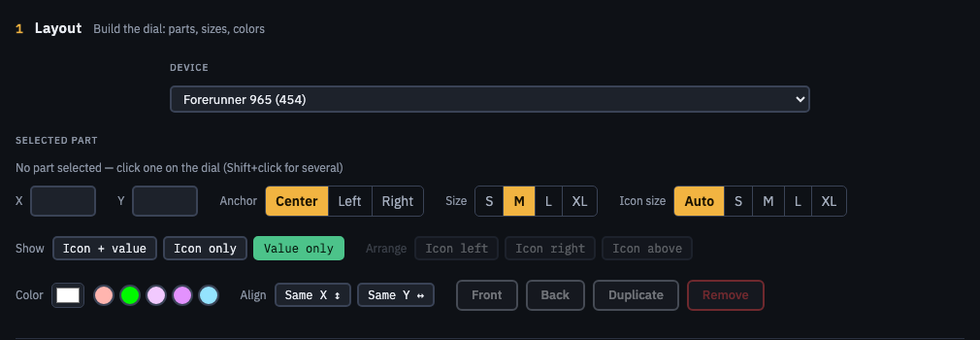
- Anchor: Center, Left or Right: which edge of the text stays put when the value grows.
- Size: S, M, L or XL (graphs: Small or Large).
- Icon size: Auto, or a size of its own.
- Show: Icon + value, Icon only or Value only.
- Arrange: Icon left, Icon right or Icon above.
- Color: the picker, plus the five colors you used last. A dial can use up to 22 colors; past that, Face Composer asks you to reuse one.
- Gap: the space between the icon and the value, 0 to 24 (default 6).
- Align: Same X or Same Y lines up several selected parts with the one you clicked last, by their visible center. If a rim or hands are in the selection, everything lines up on the middle of the dial.
- Front / Back: draw the part over or under the others.
- Duplicate / Remove: copy the part one grid step below, or delete it. Rims and hands cannot be duplicated.
Dial tools
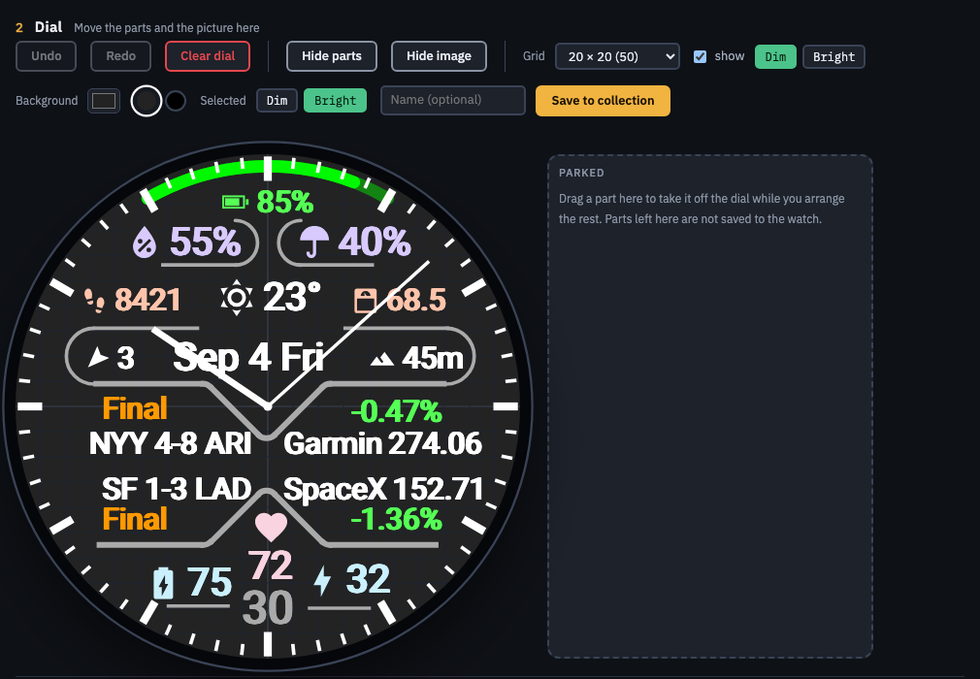
- Undo / Redo / Clear dial: see above. Clear dial asks first.
- Grid: 200 × 200 down to 10 × 10. Show turns the lines on and off; Dim and Bright set how strong they are.
- Background: the dial's background color: the picker and the colors you used recently. Auto background (chapter 7) makes it from the photo.
- Selected: Dim or Bright: how strong the dashed frame around the selected part is. Display only.
- Name / Save to collection: save the dial (chapter 8).
- Parked: drag a part here to take it off the dial while you arrange the rest. Parked parts are not saved and do not go to the watch.
- Hide parts / Hide image: look at the picture or the parts alone. Nothing changes.
- Clear dial: empties the dial and resets the background and sizes, after asking. Undo brings it back.
Limits
The watch takes 40 parts, including text, analog clocks, circles and graphs. Lines do not count (up to 60 of them). Above 32 parts the count turns amber: the watch draws more slowly.
Start the dial over
At the bottom of the page. These replace the parts on the dial; nothing is sent to the watch and your Collection does not change.
- Start from Lobby: the dial The Face ships with.
- Start from Minimal: three parts: time, date and battery.
- Take every part off: an empty dial. The background, text sizes and picture stay.
5. Parts Reference
Clock
| Part | What it shows |
|---|---|
| Time | The time. Time zone: this watch's time or one of 32 cities (summer time follows automatically). Hours: Auto, 12 or 24 in Style. |
| Date | The date. Show sets the weekday: Icon + value = weekday and date, Icon only = weekday, Value only = date. |
| Battery | The watch battery. |
| Time + sec / Seconds | The time with seconds, or the seconds alone. |
| Notifications | How many phone notifications are waiting. |
| Analog | A small analog clock you can place anywhere, several per dial. Diameter, Size, Shows (Hour + minute or Seconds), Time zone (this watch or one of 32 cities), Hands (six styles) and Marks (twelve small marks on or off). Handy for a second time zone. |
Text
The Text part shows words you type, up to 20 characters. Plain letters, digits and symbols are drawn by the watch itself. Anything else (Japanese, for example) is sent to the watch as a small picture: it looks exactly as it does in Face Composer, but it needs a watch that can show pictures (chapter 12), a change takes a few minutes to arrive, and a dial can hold two such picture texts.
Body and graphs
| Part | What it shows |
|---|---|
| Heart rate, Steps, Floors, Calories, Weight, Body Battery, Stress, Respiration | Read on the watch. These values never leave it. |
| Heart rate and Stress: Level color | On colors the value by how high it is. Stress: rest / low / medium / high (four colors, boundaries 25 / 50 / 75). Heart rate: below Rest, between, above High (three colors, with the Rest and High rows below). The colors are set in the Colors row. |
| HR graph | The last 6 hours of heart rate, every 5 minutes. |
| Stress graph | The last 6 hours of stress, as bars every 10 minutes. Level color paints the bars by level. |
| Steps graph | The last 7 days of steps; today on the right. |
Graphs come in two sizes (Small, Large) and can also be stretched: drag the handle at the lower right, or use the Width and Height rows.
Weather
| Part | What it shows |
|---|---|
| Weather | The current weather icon and temperature. |
| Humidity, Wind, Pressure, Altitude | Units are set in Style. |
| Moon age | The moon phase and its age in days. |
| Today hi/lo | Today's high and low. |
| Rain today | Today's chance of rain. |
| Now 1h 2h | A strip of now and the next hours. Columns: Now 1h 2h, +3h or +4h. Shows: Temp, Rain % or Wind. With Value only, the numbers line up on the right. |
Where the forecast comes from is set once in 5 Setup (chapter 9).
Hands and rim
- Hands: Bars, Needles, Kite, Outline, Rim marks, Classic, Outline round. Size (S to XL) and Length (40 to 120%) shorten or thicken them, for example when the rim sits further in. Rim marks also has Distance, how far its marks sit from the edge.
- Rim: Ticks, Batons, Dots, 12 3 6 9 and Ring. Size sets how big the marks and numerals are; Position slides the rim in from the edge (0 = Edge, up to 60). 12 3 6 9 has a Numbers row: 12 3 6 9, All 12 or Roman.
- Meter 1 to 4: arcs around the edge, each one measuring battery, steps, Body Battery, stress, humidity, rain today or heart rate. Each arc has its own on/off, color and track color; right-click a color to set it back to automatic. A heart-rate arc adds Rest and High (Auto uses the watch's own values) and HR color: Part color, or By heart rate for blue below Rest, green between and red above High.
Lines and shapes
- Line: Direction (│ ─ ╲ ╱), Length, Thickness, and Joint: R rounds the corner where two lines meet (both need R, and lines of different colors work too) or Sharp.
- Circle: Diameter, Thickness (Thin, Medium, Thick or None for no outline), Shape (Full, Half, Quarter), Turn in 45° steps, Fill (full circles only: a color or No fill), and Meter: the ring can fill up with battery, steps, Body Battery, stress, humidity, rain today or heart rate.
- Rectangle: Width, Height, Thickness (None for no outline), Fill (a color or No fill; with Thickness None this makes a solid block) and Join (R or Sharp). Drag the handle at the lower right to resize.
Markets (right panel)
Stock 1 and Stock 2 show a price; the % versions show the day's change. Drop one on the dial, then fill in Selected part:
- Symbol: as Yahoo Finance writes it: AAPL, 7203.T for Tokyo, ^GSPC for an index, BTC-USD for crypto. Face Composer looks it up and shows the price, or not found.
- Name: your own label, up to 12 letters and digits.
- Value / Label: Price or Change %; show the Symbol or your Name.
- Up / down: Keep color, or By move: green or red by direction (which is up is set in Style).
Games (right panel)
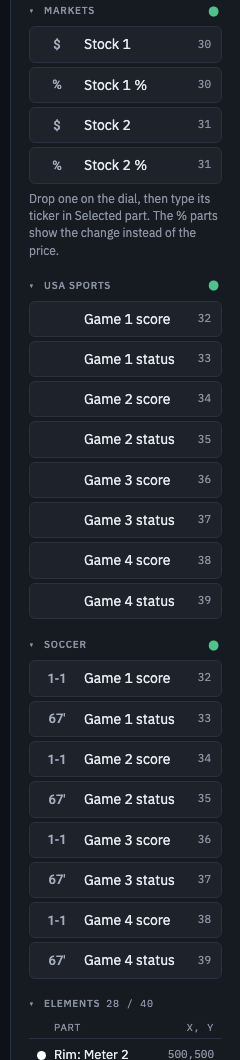
There are four game slots, Game 1 to Game 4. USA Sports (MLB, NFL, NBA, NHL) and Soccer (Premier League, LaLiga, Serie A, Bundesliga, Ligue 1, J1 League) are the same four slots, so Game 1 from either group is the same slot. Each part is a score or a status line.
- Game N: the league. Changing it asks you to pick the team again.
- Team: your team.
- State: Keep color, or By state: blue at the top of an inning, red at the bottom, green in play, orange when final, your color before the start.
When your team has no game today, the slot shows its next game within 7 days, or -- when there is none (for example out of season).
6. Style and Sizes
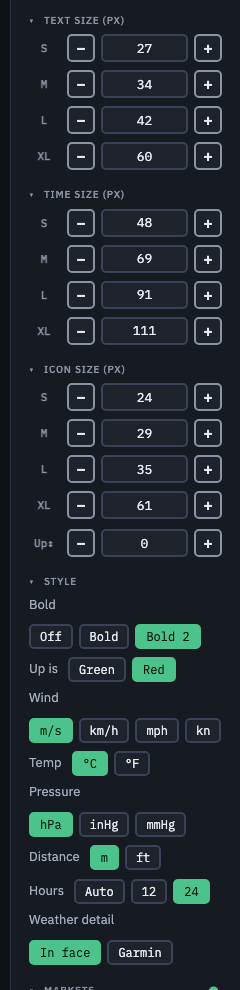
- Text size / Time size: the pixel height of S, M, L and XL, for values and for the clock. − and + step by one.
- Icon size: the same for icons, plus Up↕ to shift every icon up or down against the numbers. The gap between an icon and its value is set per part (Gap, chapter 4).
| Style | Choices |
|---|---|
| Bold | Off, Bold, Bold 2 |
| Up is | Green or Red (for stocks set to By move) |
| Wind | m/s, km/h, mph, kn |
| Temp | °C, °F |
| Pressure | hPa, inHg, mmHg |
| Distance | m, ft |
| Hours | Auto (follow the watch), 12, 24 |
| Weather detail | In face (the detail screens in chapter 2) or Garmin (the watch's own weather screen) |
7. Photos and Shapes
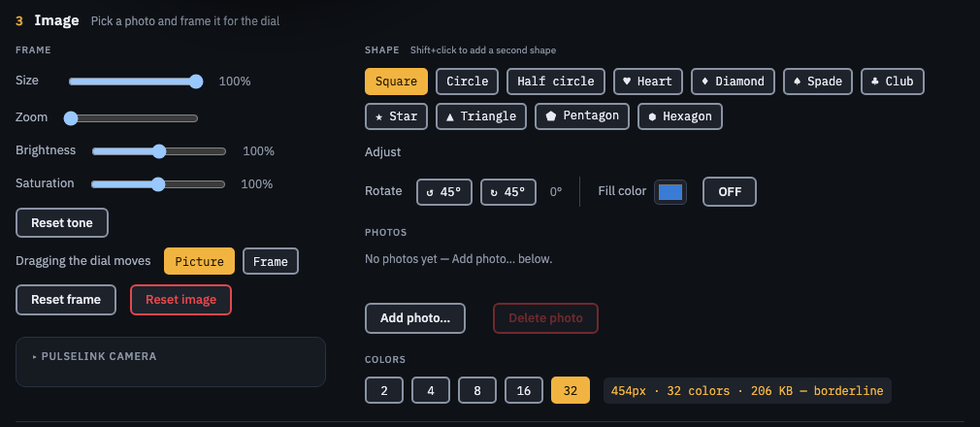
Adding a photo
- Add photo…: pick a PNG, JPEG or WebP. It is stored at up to 1024 pixels on the long side. Up to 10 photos.
- Use it: click a photo to put it on the dial; click it again to take it off.
- Delete photo: removes it from your photos. Dials already saved from it keep their cut-out but can no longer be re-adjusted.
Framing
- Dragging the dial moves: Picture moves the photo inside the shape; Frame moves the shape.
- Size, Zoom: the size of the shape (30 to 100%) and of the photo inside it (1 to 3×).
- Brightness, Saturation: tone the photo. Reset tone puts them back.
- Reset frame / Reset image: re-center the shape at 100%, or start the picture over. Nothing is deleted.
Shape
Square, Circle, Half circle, Heart, Diamond, Spade, Club, Star, Triangle, Pentagon or Hexagon. Shift+click adds a second shape, and Adjust chooses which one you are editing. Next to Adjust, 2nd shape sets how the two combine: Add joins them; Cut takes the second shape out of the first, for a ring, a window for the time, or a crescent, and the dial's background color shows through the hole. Rotate turns a shape in 45° steps. Fill color paints the shape one color instead of using a photo.
Flatten to Another Shape
The button under 2nd shape lets you build a cut-out from more than two shapes. It fixes the current shape (including a second shape with Add or Cut) as a layer under the picture, so the shape buttons are free for the next one. Pick another shape, add a second with Shift+click (Add or Cut), and press Flatten again. The count appears next to the button as N shapes fixed. What to know:
- Fixed shapes live only inside the dial you are editing. Nothing is added to Photos, and the photo itself is unchanged.
- They travel with the dial: saving to Collection keeps them, Edit brings them back exactly, share links carry them, and so does the draft that survives closing the page.
- Right after you press Flatten nothing looks different: the shape you had selected stays as the shape you are editing. Click the next shape and it takes its place.
- Fixed shapes cannot be moved, resized or rotated afterwards. Only the shape you are editing now (and its second shape) can be adjusted.
- Reset frame (or Reset image) removes all fixed shapes at once; there is no removing one at a time, and Undo (⌘Z) does not apply, because Undo covers parts only. To go back, open the item you saved in Collection.
- Up to 12 fixed shapes per dial.
Colors on the watch
2, 4, 8, 16 or 32 colors (the watch shows at most 32). Next to it, Face Composer shows the picture's size on the watch: OK, borderline or too big. Fewer colors make a lighter picture; logos and flat artwork look good with very few.
- Auto background: on, it picks the dial's background color from the photo, from Deep to Pale.
- PulseLink camera: for people who also use PulseLink, another Easymoat app that can turn a spare phone into a fixed camera. Link your PulseLink first (5 Setup → Link PulseLink, chapter 9), then turn Camera on and the latest camera picture fills the shape.
Garmin watches have no transparency. Where a shape's edge meets the background, Face Composer blends the two into solid colors, so the preview and the watch match.
8. Collection and To Watch

- Sample items: a new Device ID starts with two items: Sample: Lobby (the analog dial the watch ships with) and Sample: Digital (a digital dial with live parts). Edit them to fit your watch, send them, or delete them — they are yours like any other item.
- Save to collection: above the dial. Keeps the dial and its picture as an item; the name is optional and the field shows the item number. When you are editing an item from the Collection, saving asks whether to save over it (it keeps its number) or add a new item. Up to 30 items.
- To watch <ID>: sends the item to the watch whose ID is on the button. It replaces whatever that watch shows, within 5 minutes.
- Showing: marks the item that is on the watch now.
- Edit / Delete: bring the item back into the editor, or remove it.
The first time you send in a session, and after you change the Device ID, Face Composer asks you to confirm the watch. Parked parts are not saved; the save message tells you if any were left out.
Sharing a dial with a link
Share… on an item makes a link you can send to anyone, by message or on social media. Nobody needs your Device ID, and you do not need theirs.
- Shared as: the name shown to whoever opens the link. It is required: set it once under Links you shared, and change it any time. Your Device ID is never shown.
- Who can share: making a link needs the 1-Year Pass, in a browser signed in with the watch's Web code (chapter 9); there is no key to enter, the Pass belongs to your Device ID. Receiving works during the 7-day trial and with a Pass. Once the trial or Pass has ended, both stop until you buy or renew.
- What is shared: a copy of the dial at that moment: parts, colors, sizes and the picture cut-out. Editing the item later does not change the link.
- Receiving: open the link, type your own Device ID and press Add to my collection. The dial lands in your Collection as a new item, marked with who shared it, that you can edit and send To watch. Your watch does not change until you send it. Each link can be added to a watch once.
- Passing it on: you can share a dial you received. The new link shows your name and, after it, the name of the person who made it first.
- Different watches: the link says which watch it was made for. If yours is different, Face Composer tells you what may shift (fixed text sizes, screen shape) so you can adjust it after adding.
- Links you shared: lists your links with how many times each was opened and added, so you can tell a link that never arrived from one that was opened but not added. Copy link and Remove are there. Removing a link stops new adds; people who already added the dial keep their copy. Up to 20 links at a time.
9. Setup
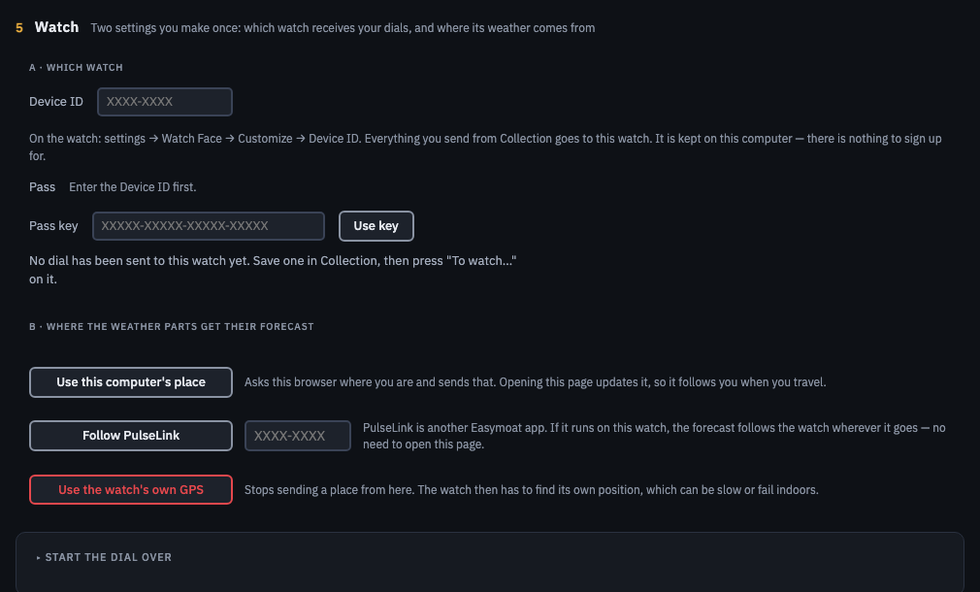
A · Which watch
Type your watch's Device ID. On the watch: settings → Watch Face → Customize → Device ID (chapter 2). It is stored in this browser. The line below tells you what the watch is doing:
Signing in with the Web code: once your watch runs the current The Face, it registers itself, and this browser has to sign in once before it can show or edit your dials. The Pass line then says the watch is registered and asks for its Web code. On the watch, open settings → Watch Face → Customize → Web code: it shows a 6-digit code that changes every minute and works once; if it has gone stale, select Web code again for a fresh one. Type it in the Web code box and press Sign in. The browser stays signed in for 30 days. Sign out ends it on this browser only (the Collection then asks you to sign in again); Sign out web on the watch ends it on every browser at the watch's next sync, within about 5 minutes. A watch that has not been updated needs no sign-in yet.
| Message | Meaning |
|---|---|
| No dial has been sent to this watch yet | Save one in Collection and press To watch. |
| Your watch has not connected yet | The Face has not checked in with this ID yet. Make sure The Face is your watch face and the ID matches. |
| The dial you sent is on its way | It will appear within 5 minutes. |
| Your watch is showing the dial you sent | Done. It also tells you when the watch last checked. |
| Your watch has not checked for … | The watch may be off or away from your phone. |
B · Where the weather parts get their forecast
- Use this computer's place: asks this browser where you are and sends it, rounded to about 11 km. Opening the page updates it, so it follows you when you travel.
- Follow PulseLink: if PulseLink runs on the same watch, link it first (C below), then press Follow PulseLink and the forecast follows the watch wherever it goes. No ID to type here.
- Use the watch's own GPS: stops sending a place from here. The watch then has to find its position itself, which can be slow or fail indoors.
C · Link PulseLink
Link PulseLink connects a PulseLink watch to your Face Composer, so the forecast can follow that watch (B) and the PulseLink Cam picture can appear on a dial (chapter 7). It needs proof that the PulseLink watch is yours: on that watch, open You → Device ID → Web code. It shows a 6-digit code that is valid for 10 minutes and works once. Under Link PulseLink, type the PulseLink ID (XXXX-XXXX) and the 6-digit Web code, then press Link. The status line then reads Linked to PulseLink ****-1234 (the ID is shown with only its last four characters).
Unlink ends it whenever you like. Sign out web on the PulseLink watch ends it too (so does deleting the PulseLink data); the status line then says the link has ended, and you link again with a new Web code when you want it back. The Face Composer server keeps only which PulseLink is linked and when; the PulseLink watch's position is used for the forecast each time it is needed and is not recorded.
Pass
The Pass line shows your trial or Pass: days left, the date it is valid until, or that it has ended, with a link to buy or renew. The Pass belongs to your Device ID, so there is nothing to enter after buying: use the same Device ID at checkout as in Face Composer, and saving, To watch and sharing recognise it. Sharing needs this browser to be signed in with the watch's Web code (A above). The key in your purchase email is not entered anywhere; keep it for when you contact support.
10. On Your Phone
- Sign in: type your Device ID once. It stays on the phone. If the watch is registered, also type the Web code from the watch (Web code (6 digits) → Sign in), once every 30 days.
- Switch dials: press To watch on any item. Share… and Delete work too; editing needs a computer.
- Receive a link: a shared link opens on the phone as well: type your Device ID, add the dial, then send it To watch from the Collection.
- Trial and Pass: the line under your Device ID shows the same thing as 5 Setup → Pass on a computer: days left in the trial, when the Pass ends, and a link to get or renew it. Signing in with the Web code works here too (Web code (6 digits) → Sign in).
- Change / Editor: Change switches to another watch. Editor opens the full editor if you really need it.
11. Trial and Pass
- 7 days free: every feature except making share links, from your first save (receiving a shared dial also counts as a save). No card, no account.
- 1-Year Pass: $9.99, one payment, valid for 365 days from the day you buy. No subscription and no auto-renewal.
- Buying: on the Face Composer page. Enter The Face's Device ID at checkout (not the ID of another Easymoat app; each app has its own, and their keys do not work here). Within minutes the Pass is attached to that Device ID and you get a confirmation email with a reference key (used only if you contact support); there is nothing to enter in Face Composer. Saving, To watch and sharing recognise the Pass by the Device ID (sharing also needs the browser signed in with the Web code).
- Renewing: buy again with the same Device ID whenever you like. 365 days are added to what is left, so renewing early loses nothing.
When the trial or Pass ends
- Face Composer: still opens. You can look at your dials and delete them, but saving to Collection, To watch and sharing (making or receiving links) are off until you buy or renew.
- The Face: keeps showing the last dial you sent, with its live data. Nothing on the watch stops.
A watch that has held a Pass does not start a new free trial when it ends.
12. Supported Devices
The Face runs on 66 Garmin watches, all listed in Face Composer under 1 Layout → Device. There are two levels of support:
- Full (26 watches): AMOLED watches with vector fonts: every text size, Bold and the photo work exactly as you compose them. Forerunner 165, 265, 265s, 570, 965 and 970; fēnix 8 (AMOLED), 8 Pro, 9, 9 Pro and E; Venu 3, 3S, 4 and X1; vívoactive 6; D2 Mach 2.
- Partial (40 watches): placement, colors and icons work; text comes in fixed sizes and Bold is turned off automatically, so the dial looks different from a Forerunner 965. Includes epix Gen 2, fēnix 7 series, fēnix 9 Pro Solar 47mm, Venu 2 family, vívoactive 5, Instinct 3 AMOLED, Approach, MARQ Gen 2, Descent and Forerunner 255 / 955.
Photos
- Connect IQ 5.0 watches: Venu 2, Venu 2 Plus, Venu 2S, Venu Sq 2, Venu Sq 2 Music and D2 Air X10 cannot show the photo, or text in languages other than plain letters (chapter 5). The dial appears without them.
- MIP screens: fēnix 7, Forerunner 255 / 955, Enduro and other memory-in-pixel watches show 256 colors. Photos break up; logos and flat shapes work well.
Instinct 3 Solar and Instinct E are not supported: they have too little memory for watch faces.
On MIP watches the Seconds part is redrawn every second, and any part placed over it disappears each time. Keep seconds clear of other parts.
13. Troubleshooting
The dial does not arrive
Check the line under Device ID in 5 Setup. The watch checks every 5 minutes, and only while The Face is your watch face and your phone is nearby with Garmin Connect running. Make sure the ID on the watch and in Face Composer are exactly the same.
I cannot see my Device ID on the watch
In the watch's settings, open Watch Face → Customize: Device ID is the first line.
Face Composer asks me to confirm the watch
It asks on the first send after you open the page or change the Device ID. Check the ID on the button and in the message before you press OK.
The weather is for the wrong place
Choose where the forecast comes from in 5 Setup → B. Watch faces often cannot get a position on their own, so Use this computer's place or Follow PulseLink is more reliable.
The sample dial overlaps or is cut off
The Lobby dial is laid out on a Forerunner 965. Open Face Composer, choose your watch in 1 Layout → Device, press Start from Lobby, adjust it and send it.
The text looks different on my watch
Your watch may be a partial-support model with fixed font sizes (chapter 12). Pick your exact watch in 1 Layout → Device to see it as the watch does.
A stock shows -- or not found
Check the symbol as Yahoo Finance writes it (7203.T, ^GSPC, BTC-USD).
A game slot shows --
Your team has no game today or in the next 7 days, often out of season.
The photo looks rough
Try more colors in 3 Image (up to 32). On MIP watches photos always break up; use a logo or a flat shape instead.
Holding a part opens nothing
Check that Hold for details is on and that your watch supports complications. Stocks need MarketWatch; Games 1 and 2 need BaseballWatch and MLB; Games 3 and 4 and other leagues open nothing.
Some parts are missing on the watch
Parked parts are not sent. The watch also takes at most 40 parts (lines do not count).
I deleted a photo and cannot re-adjust a dial
Dials keep their cut-out, but the original photo is gone. Add the photo again and save a new item.
A shared link says it is not available
The person who made it removed the link, or the address is incomplete. Ask them for a new one. Dials you already added stay in your Collection.
Japanese text is missing or late
Text that is not plain letters travels as a picture: it needs a watch that can show pictures, arrives a few minutes after the dial, and a dial holds two of them.
Face Composer says the dial already uses 22 colors
The watch keeps at most 22 colors per dial. Reuse a color from the swatches, or change another part first.
Follow PulseLink or PulseLink camera suddenly stopped working
Since the September 2026 update, PulseLink has to be linked with its Web code; settings made earlier with the ID alone were cleared, so the forecast shows Not set and the camera asks you to link first. Link it again under 5 Setup → Link PulseLink (chapter 9), then press Follow PulseLink or turn Camera on.
Face Composer asks for a Web code, or the code is not accepted
- The watch is registered, so each browser signs in once (chapter 9). Read the code from the watch: settings → Watch Face → Customize → Web code, and type it within the minute it is shown; each code works once.
- "The code was not accepted": check the digits and use the code the watch shows right now, not an earlier one.
- "Too many tries": wait a few minutes and try again.
- "This watch is not registered yet": no sign-in is needed until The Face is updated to the current version.
- "This watch has to be registered first": open The Face on the watch once; it registers by itself, then sign in with its Web code.
- "This Device ID is frozen": two watches claimed the same ID. Email easymoat@gmail.com.
- On the watch, Web code reads Not ready yet until the first sync after installing (up to 5 minutes), Registered elsewhere when another watch already registered this ID (see the frozen case above), or Not supported on a watch that cannot make codes; in that last case sign in stays as it was.
Saving and To watch are off
Your trial or Pass has ended. Buy or renew from the link in 5 Setup; your dials and the watch are untouched.
Anything else: easymoat@gmail.com. Please include your Device ID and your watch model.
Icons in Face Composer and The Face: Material Design Icons by Pictogrammers, Apache License 2.0.