GolfWatch — User Manual
Every screen, gesture and setting.
1. Getting Started
GolfWatch follows the week's PGA Tour event on your Garmin. Pick up to five players, and your wrist shows where each one is on the course, the hole they are playing, and every shot as it comes in.
- Install GolfWatch on your watch from the Connect IQ Store.
- Open the app. The clock screen comes first, with the event's name and the weather at the course.
- Press DOWN (or swipe), or tap the bottom of the screen, to see the list of players this week.
- Hold a player's row and choose a slot. They are now on your Home screen. On a watch without a touchscreen, use the selection frame in chapter 2.
Supported watches
| Series | Models |
|---|---|
| Forerunner | 70, 165, 165 Music, 170, 170 Music, 265, 265s, 570 42mm, 570 47mm, 965, 970 |
| Venu | 2, 2 Plus, 2S, 3, 3S, 4 41mm, 4 45mm |
| vívoactive | 5, 6 |
| fēnix | 8 43mm / 47mm / 51mm, 8 Pro 47mm / 51mm / MicroLED, 9 43mm / 47mm / 51mm, 9 Pro 43mm / 47mm / 51mm, E |
| epix | epix (Gen 2), epix Pro (Gen 2) 42mm / 47mm / 51mm |
| quatix / tactix | quatix 7 Sapphire, quatix 7 Pro, quatix 8 47mm / 51mm, quatix 8 Pro 47mm / 51mm, tactix 7 AMOLED Edition, tactix 8 47mm / 51mm |
| Instinct | 3 AMOLED 45mm, 3 AMOLED 50mm, Crossover AMOLED |
| Approach | S50, S70 42mm, S70 47mm |
| D2 | Air X10, Air X15, Mach 1, Mach 1 Pro, Mach 2, Mach 2 Pro |
| Descent | G2, Mk3 43mm, Mk3i 43mm, Mk3i 51mm |
| MARQ (Gen 2) | all editions, Aviator |
The trial and the 1-Year Pass
Every feature is free for 14 days. The trial starts by itself when you open the app, with no payment and no account. After that, the 1-Year Pass costs $4.99 and lasts 365 days from the day you buy. It does not renew automatically.
| After the trial | Screens |
|---|---|
| Free | The clock screen, your players on Home, Settings, the glance and your watch face |
| 1-Year Pass | Opening a player or a Not playing row (Course and hole screens), the course map, Leaderboard and FIELD, the event overview and the weather details |
Shot alerts and other players' popups work while one of the pass screens is open.
Buying the pass
- On the watch, open Settings and find your Device ID. After the trial, the same ID also appears when you open a pass screen.
- Go to easymoat.com/golfwatch, open the purchase page and enter your Device ID: 9 characters including the hyphen (xxxx-xxxx).
- Open the app again. The pass is now active.
A key also arrives by email. You do not need to enter it if you entered your Device ID when you bought. If you do need it, enter it in Connect IQ → GolfWatch → Settings → License Key.
2. Moving Around
Everything starts from the clock screen. BACK returns the way you came.
| From | Do this | Opens |
|---|---|---|
| Clock | START | Home, your players |
| Clock | Tap the time | Course map |
| Clock | DOWN (or swipe), or tap the bottom | Leaderboard |
| Clock | Tap the weather or wind | Weather at the course |
| Home | Tap a player, or START | That player's Course |
| Home | Tap the event name | Event overview |
| Home | Tap the clock at the top | Settings |
| Course | Tap a hole, or START | The hole screen |
Swiping left and right
The course map, the clock and Home are joined in a loop.
| Screen | Swipe left | Swipe right |
|---|---|---|
| Course map | Clock | Home |
| Clock | Home | Course map |
| Home | Course map | Clock |
On these three screens, a right swipe does not go back. To go back, press BACK: Home returns to the clock, and the course map zooms out one step, then returns to the clock.
The loop works when GolfWatch starts on the clock screen. It does not apply with Clock screen off in Settings, or when you open GolfWatch from the glance or your watch face. After the trial, swiping to the course map shows the pass screen.
Watches with UP and DOWN buttons: the selection frame
On these watches, an orange frame reaches what you would otherwise tap or hold, so you can get around without touching the screen.
| Do this | What happens |
|---|---|
| MENU (hold UP) | Show the frame. |
| UP / DOWN | Move to the previous / next item. It wraps around at the ends. |
| START | Do what the frame shows. |
| BACK | Hide the frame. |
While the frame is showing, these buttons work on the frame instead of doing their usual job. If you leave a screen with the frame showing, it is still there when you come back.
| Screen | Items in the frame |
|---|---|
| Clock | Weather, Course map, Leaderboard |
| Home | Settings, Event, each player's row (Season stats / Move / Remove), Field |
| Leaderboard and FIELD | Add to slot, then each row on screen. START opens the row, as a tap does. Past the last row, the list scrolls. |
| Course | Next round, Leaderboard |
| Hole | Next round, Hole / Green, Leaderboard |
The course map, the event overview and the weather do not use the frame. On a course opened without a player, Next round does not appear. On watches without these buttons, nothing changes.
3. Clock Screen
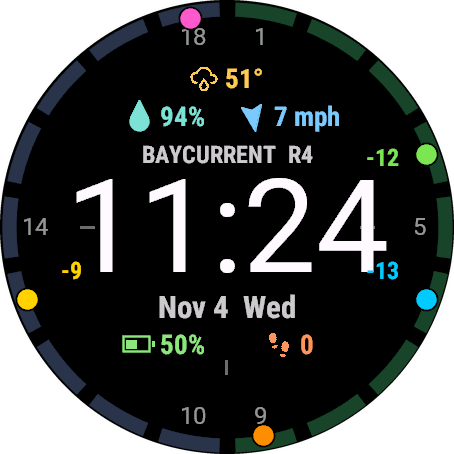
The rim is the course: 18 equal parts, with hole 1 at 12 o'clock, the front nine on the right and the back nine on the left. Each of your players is a colored dot on the hole they are playing, with their score and shot beside it (tee, 1st, 2nd, putt). The dot flashes when a new shot comes in.
Players who have not started wait to the right of hole 1, and players who have finished sit to the left of hole 18. They appear as dots only. Playing partners share one dot.
Above the event name are the weather and wind at the course. Below the time are the date, then your own battery and steps. Clock style in Settings switches the time between Digital and Hands.
Swipe left for Home, or right for the course map (chapter 2).
To start on Home instead, turn off Clock screen in Settings.
4. Course Map
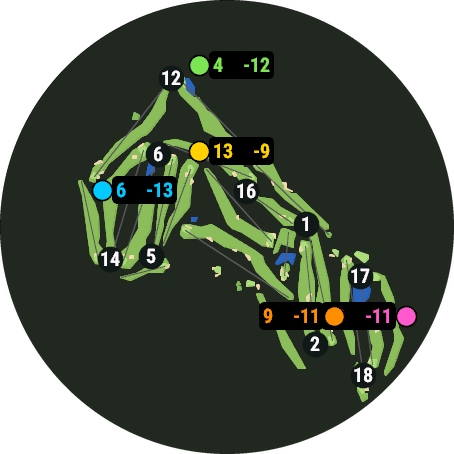
Tap the time on the clock screen to see the whole course, north up. Each player has a dot and a label with their name. Players at the same spot share one label.
| Do this | What happens |
|---|---|
| Tap a player's label | Change what the label shows: name, then hole, shot and score, then the rest of their group. Labels start with the name each time you open the map. |
| Hold a player's label | Open the hole that player is on (chapter 8). BACK goes to their Course, then to the map. |
| Tap anywhere else | Zoom in on that spot, x2 then x3. At x3 a tap moves the center. |
| UP / DOWN (or swipe) | Zoom in / out. |
| START | Zoom in one step. After x3, back to the whole course. |
| BACK | Zoom out one step. From the whole course, back to the clock. |
| Swipe left / right | Go to the clock / Home (chapter 2). |
Following a player around the course
The player dots are about 1–2 minutes behind.
- A dot is where the player's last shot landed.
- On the green a dot may pause for a few minutes. By then the player is finishing the hole and walking to the next tee.
- A hole takes about 10–20 minutes, so to catch a player, wait at the next hole.
Your own position
Turn on My position in Settings to see yourself on the map, with roughly how far you are from one of your players on the course, for example YOU Matsuyama 140y. A long name is shortened so the distance always fits. Player positions run about 1-2 minutes behind. GPS runs only while the map is on screen. Your position stays on the watch.
About the maps
We draw the course maps ourselves, and they are simplified. A map marked Being confirmed is still being checked and may change during the event. A course without a map shows No course map; scores and the leaderboard still work.
On some courses, hole drawings show houses as reddish-brown squares and the clubhouse in white, and cart paths appear as lines. The clubhouse also stays on the zoomed-in course map. Temporary structures such as tents are not drawn.
5. Home and Your Players
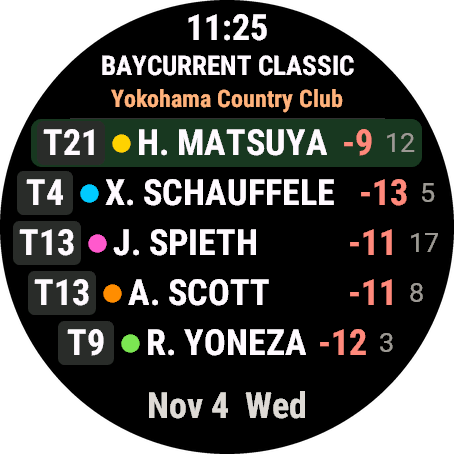
Home lists your players in slots 1 to 5, in the order you set. Each row shows position, the player's color, name, score to par, and on the right where they are: the last hole finished, today's strokes once they are done, or their tee time in your watch's local time.
When play is suspended and a restart time has been announced, the course name gives way to it, for example Resumes 22:00. Between rounds, the same line shows about when the next round starts, for example R3 approx. 23:40-01:40 or R4 starts 07:30. Times are in your watch's local time. The Leaderboard shows the same line in place of its heading.
| Do this | What happens |
|---|---|
| Tap a player, or START | Open that player's Course. |
| Open a Not playing row | Tap or START: the course without a player. See below. |
| Hold a player | Season stats (chapter 6), Move up, Move down or Remove. |
| MENU | With UP and DOWN buttons: the selection frame (chapter 2). Otherwise: Season stats, Move up, Move down or Remove for the selected row. |
| UP / DOWN (or swipe) | Move between rows. UP from the first row goes to the clock. |
| Swipe left / right | Go to the course map / the clock (chapter 2). |
| Tap the event name | Open the event overview. |
| Tap the date at the bottom | Open the Leaderboard. |
| Tap the clock at the top | Open Settings. |
Adding a player
On the watch: hold a row on the Leaderboard or Field and choose a slot. You can also press MENU (with UP and DOWN buttons, then START on Add to slot at the top), then choose a player and a slot.
On your phone: open GolfWatch's settings in Connect IQ and enter the player's ESPN ID in Player slot 1 to 5. To find an ID, search by name in English on easymoat.com/golfwatch. This works without the pass. Picking from the list on the watch is for the trial and the pass.
GolfWatch starts with the top five on the 2025 money list: Scottie Scheffler, Tommy Fleetwood, Rory McIlroy, Russell Henley and J.J. Spaun. A player who is not in this week's event shows Not playing on Home.
Looking at the course without a player
Open a Not playing row to see this week's course, even before the event starts. A screen headed COURSE shows all 18 holes, with the course name and its par and yards below. Open a hole to see its shape, par and yards. No player's scores or shots appear. On the hole screen, tap or START changes the view: whole hole, second shot (par 4 and 5), around the green.
6. Leaderboard and Field
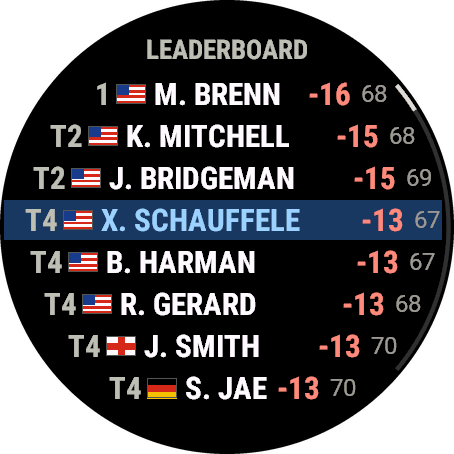
Before the event the list is headed FIELD and shows who is playing. Once play starts it becomes the LEADERBOARD: position, flag, name, score, and the hole they have reached, today's strokes when finished, or their tee time. Your players are highlighted.
| Do this | What happens |
|---|---|
| Tap a player | During the event: that player's Course, registered or not. Before it: their Season stats (below). |
| Hold a player | Season stats (below), or put them in a slot. |
| MENU | With UP and DOWN buttons: the selection frame (chapter 2), where Add to slot does the following. Otherwise: choose from the players on screen, then a slot. |
| UP / DOWN (or swipe) | Scroll. The list wraps around at the ends. |
| BACK | Back to where you opened it. |
In a playoff the status shows PO. The Course then lists the playoff holes in the order played (chapter 7).
Season stats
Hold a player on Home, the Leaderboard or the Field and choose Season stats. Before the event, tapping a player on the Field opens it too. There is one page per season: this season and the three before it. The dots at the bottom show which page you are on.
This season's page is headed by the player's FedEx Cup rank and points, when they have them. Earlier seasons are headed by the year.
| Part | What it shows |
|---|---|
| Top half | EVENTS (events played), CUTS (cuts made), TOP 10, WINS, AVG (scoring average), MONEY |
| Bottom half | That season's stats: DRIVE (average driving distance), FWY (fairways hit), GIR (greens in regulation), PUTTS (putts per green in regulation), BIRDIES (birdies per round), SAND (sand saves) |
| Do this | What happens |
|---|---|
| Tap the top half, or START | The season before. After the oldest, back to this season. |
| UP / DOWN (or swipe) | The season after / before. |
| Tap the bottom half | Switch between the stats and that season's events. |
| BACK | Back to the list. |
The events list shows the date, the event, the finish and the score, newest first. For earlier seasons it is the five best finishes. For this season it is every event until the player has played more than five, then the five best. Only PGA TOUR events are listed, team events included, and not the one being played now. Events scored by points show them, for example 38 pts.
A season with only a few rounds has no stats, and the bottom half shows No stats (few rounds). A season the player did not play shows No PGA TOUR events. On watches without a touchscreen, the bottom half stays on the stats.
7. Course: the Scorecard
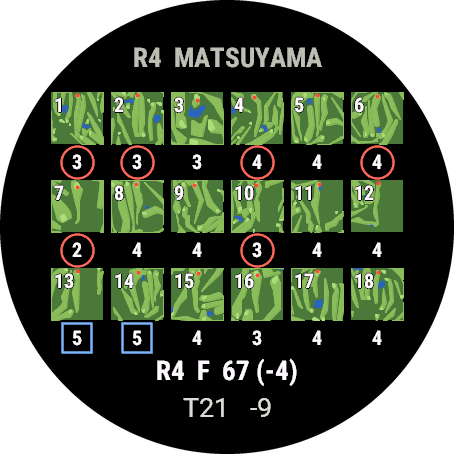
A player's round on one screen: a small picture of all 18 holes, the strokes under each, and the totals below. A yellow frame marks the hole they are on.
- A circle is a birdie, a double circle an eagle or better.
- A square is a bogey, a double square a double bogey or worse.
| Do this | What happens |
|---|---|
| Tap a hole | Open that hole. |
| START | Open the hole they are on. |
| UP / DOWN (or swipe) | Previous / next player, in the order of the list you came from. |
| Tap the heading | Next round. |
| MENU | With UP and DOWN buttons: the selection frame (chapter 2). Otherwise: next round. |
| Tap the bottom | Open the Leaderboard. |
Playoff holes
In a playoff, the Course lists the playoff holes in the order played, with the strokes. Tap a row to open that playoff hole. START opens the first one.
8. Hole Screen
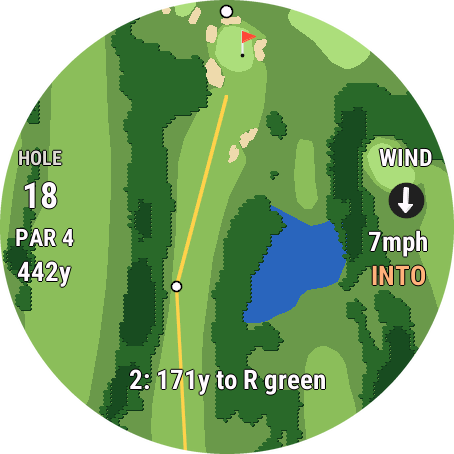
The hole's shape fills the screen: fairway, bunkers, water, trees and green. On the left are the hole number, par and yards; on the right, the wind, turned to the direction of play and marked INTO, DOWN or CROSS.
New shots play as they come in: the ball flies in an arc, putts roll, and each shot is described at the bottom, with the stroke number in a yellow circle. The view moves in to the green for the short game. When the ball drops, the result appears: BIRDIE, PAR, BOGEY and so on. If the score has not arrived yet, IN appears first and the result follows. If a player you follow is in the same group, their shots are drawn too, in their own color.
On the whole-hole view, a red circle marks the tee. While the player is on the hole and has not hit yet, ON TEE appears beside it.
When you open the hole a player is on, the screen follows them: after they hole out, it shows the result and then moves to the next hole by itself. Going to another hole with UP / DOWN (or swipe) stops this. Coming back to the hole they are on starts it again.
| Do this | What happens |
|---|---|
| Tap | Whole hole, then the second shot (par 4 and 5), then around the green. |
| Tap near the two bottom lines | Hide the two lines to see the ground under them. Tap again to show them. |
| START | Replay the hole's shots. During a replay, pause and resume. |
| UP / DOWN (or swipe) | Previous / next hole. |
| MENU | With UP and DOWN buttons: the selection frame (chapter 2). Otherwise: next round. |
| Tap the bottom edge | Open the Leaderboard. BACK there returns to this hole. |
| BACK | Back to Course. |
The pin
Around the green, the top line tells you about the pin: PIN R2 means it is that round's position, PIN R2 EST means it is estimated and may be a few meters off, and NO PIN means it is not known yet.
Shot data not ready means the shots for this hole have not arrived. Some events do not provide shots at all; scores still work.
Playoff holes
The heading shows PO 1, PO 2 and so on, so you can tell repeats of the same hole apart. UP / DOWN (or swipe) moves through the playoff holes in the order played.
Everyone still in the playoff is drawn together as one group, each in their own color, and the shots play one at a time in turn. From the second shot on, the player farther from the hole plays first, as in the Rules of Golf. The order on the tee is not in the shot data, so the player you opened tees off first.
9. Alerts
Shot alert
While you have a player open, your watch tells you each time they hit a shot on the hole they are playing. Choose Sound and vibrate, Vibrate only (the default) or Off in Settings. Alerts come while the app is open.
Your other players
When another of your players finishes a hole, a pop-up appears for 5 seconds, for example TANAKA #7 BIRDIE -4. Tap it to open their Course, or ignore it and it goes away. Players in the same group as the one you are watching do not pop up, because you can already see them.
10. Event Overview and Past Events
Tap the event name on Home to see the course, location, dates, par and yards, purse, defending champion, current round and weather.
Tap PAST EVENTS at the bottom, or press MENU, to choose an event that has finished. Home then shows that event, with PAST beside the course name, and you can open your players' rounds and replay their shots. Choose Current event to come back.
11. Weather at the Course
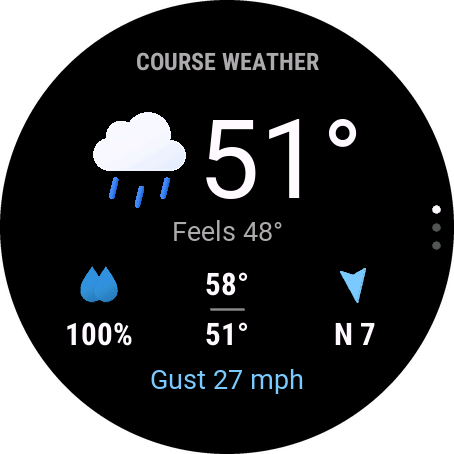
Tap or hold the weather or wind on the clock screen. There are three pages: now, hourly and daily. UP / DOWN (or swipe) changes the page.
- Now: temperature, chance of rain, high and low, wind and gusts.
- Hourly: four hours at a time, up to 12 hours. Tap for the next four (with UP and DOWN buttons, START does the same).
- Daily: four days at a time, up to 7 days.
12. Glance and Watch Face
Glance
The glance shows one player on two lines: name, then position, score and status. It shows what the app last loaded, so open the app to refresh it. Choose the player with Glance player in Settings. If they are not playing this week, the next slot takes over. Opening from the glance goes straight to that player's Course.
Complication
Add GolfWatch player to a data field on your watch face to see a player's position and score. It keeps updating about every 5 minutes, even with GolfWatch closed. Hold the field to open that player's Course. Choose the player with Complication in Settings.
After the trial, the glance and the watch face keep showing your player. Holding the field opens Home instead of the player's Course until you have the pass.
13. Settings
On the watch
Tap the clock at the top of Home. With UP and DOWN buttons, you can also press MENU, then START on Settings.
| Item | What it does |
|---|---|
| Clock screen | On: start on the clock. Off: start on Home. |
| My position | Show yourself on the course map. |
| Clock style | Digital or Hands. |
| Shot alert | Sound and vibrate, Vibrate only or Off. |
| Glance player | The slot shown on the glance. |
| Complication | The slot shown on the watch face. |
| Device ID | The ID you enter when you buy the pass. |
| Build | The app's build number. Please include it when you contact us. |
On your phone
Connect IQ → GolfWatch → Settings.
| Item | What it does |
|---|---|
| License Key | The key from the purchase email. Not needed if you entered your Device ID when you bought. |
| Player slot 1–5 | The player's ESPN ID. |
| Shot alert | Same as on the watch. |
| Putt and approach distance | Feet or Meters, for the shot descriptions. |
14. Troubleshooting
No tournament
There is no event this week.
No players this week
No players are registered. Add someone from the Leaderboard, or enter an ID in Connect IQ.
Field not announced yet
The list of players for the event has not been published yet.
No data, with a number
The data did not arrive. Check that your phone is online and paired with the watch, then open the screen again.
A dot does not move
It may be on the green: see Following a player around the course in chapter 4. Dots are also about 1–2 minutes behind.
Trial expired or License required
A pass screen was opened without an active pass. Buy the 1-Year Pass: see chapter 1. Your players and settings stay on the watch.
How long the pass lasts
365 days from the day you buy. There is no auto-renewal and nothing to cancel. To continue, buy it again. Your receipt and key are in the purchase email.
The glance shows an old score
The glance shows what the app last loaded. Open the app once.
Credits
Weather icons: Meteocons by Bas Milius (MIT). Icons: Material Design Icons by Pictogrammers (Apache 2.0). Weather: Open-Meteo.com (CC BY 4.0).
Course maps include data from OpenStreetMap contributors (ODbL) and Copernicus Sentinel-2.
GolfWatch is an independent app. It is not affiliated with or endorsed by the PGA TOUR, ESPN or Garmin.